Getting In
InSport runs right in your browser — there's nothing to download. You sign in with your Apple or Google account, then pick a handle so friends can find you.
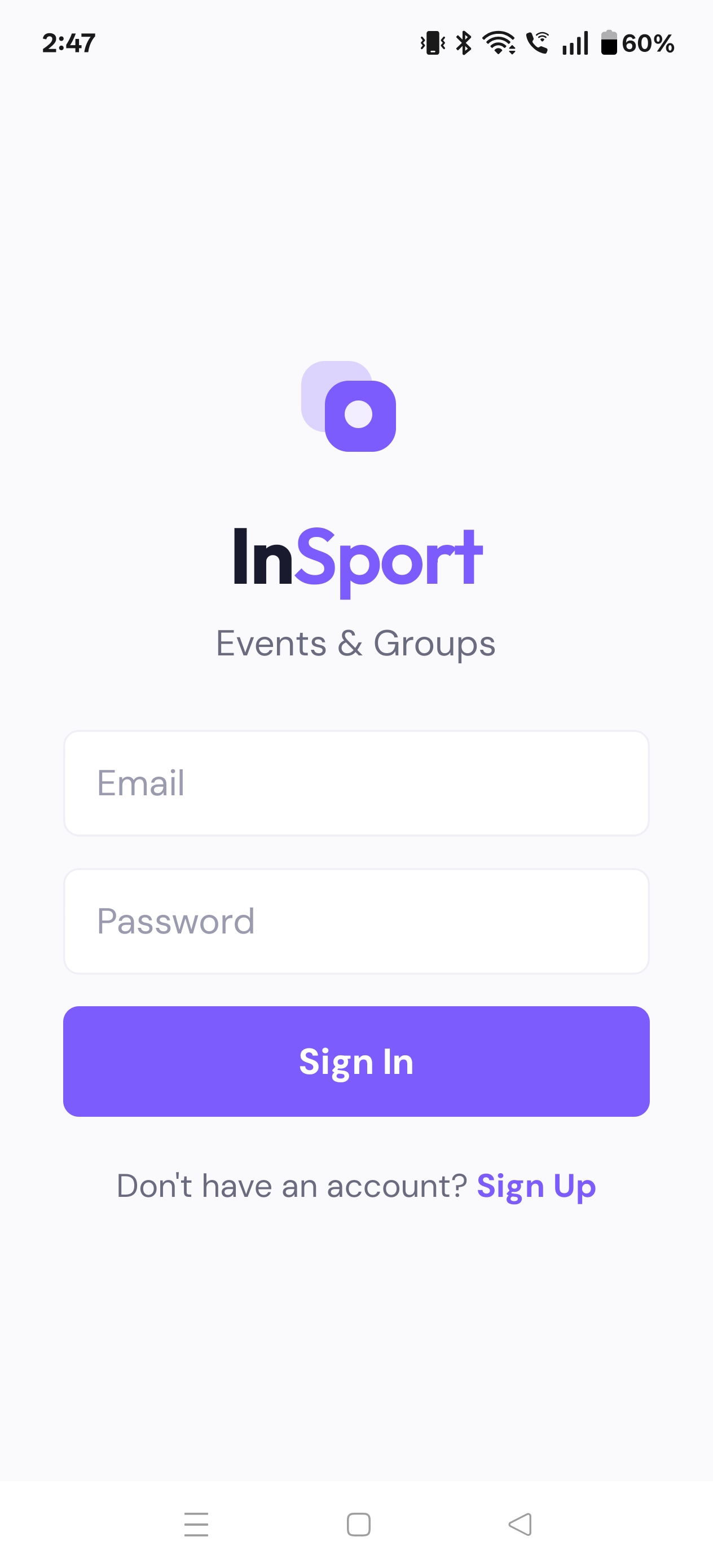
Open InSport
Go to insport.rebeltech.pro/app/ in your phone or computer's web browser. There's no App Store or Play Store download — it works straight from the web.
Tap Continue & sign in
Tap Continue, then choose Sign in with Apple or Sign in with Google. There are no separate InSport passwords to remember — your existing Apple or Google account is your login.
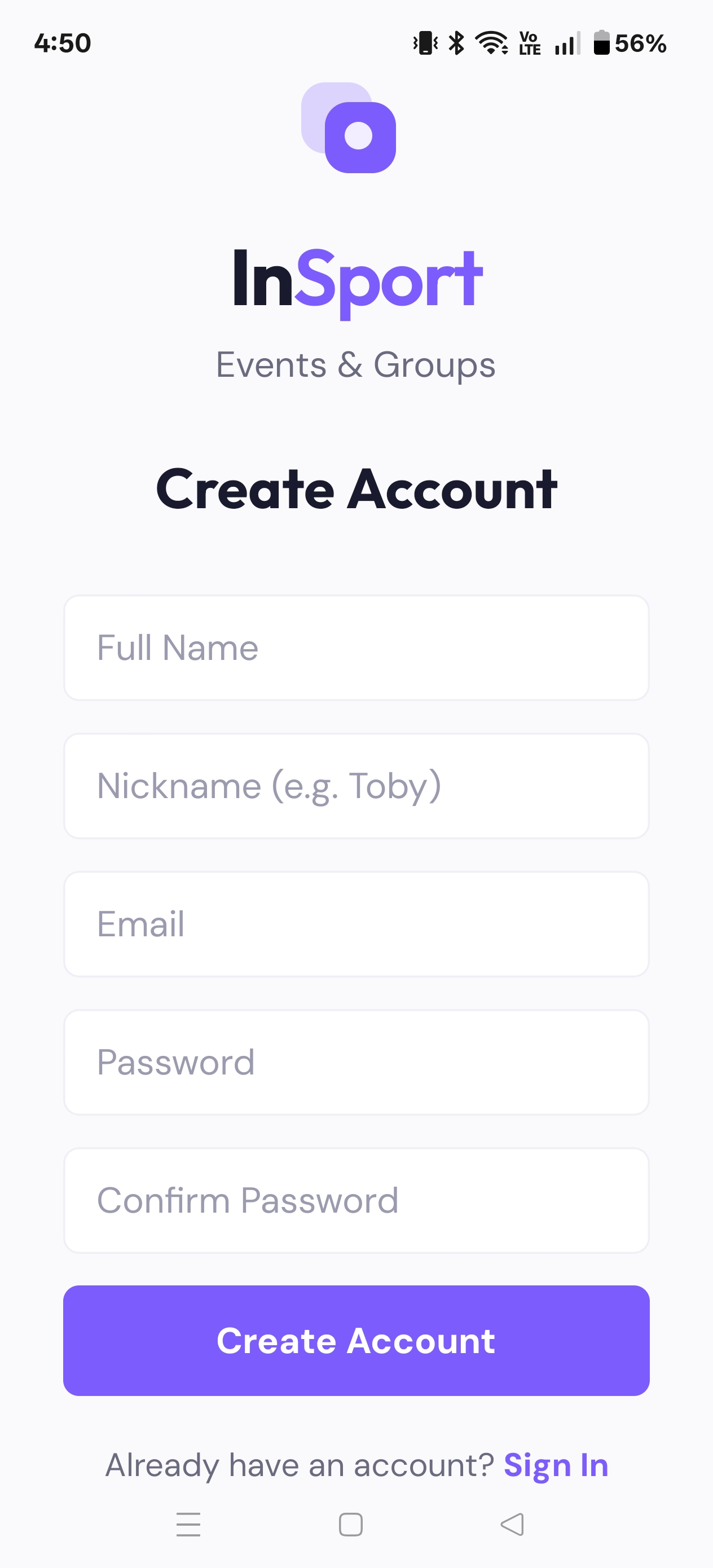
Pick your handle
The first time you sign in, you'll choose a handle — a short display name friends will recognise. InSport automatically adds a unique 4-digit tag (e.g. Alex#4821), so several people can share the same handle and still be told apart.
Add to Home Screen (recommended)
For an app-like, full-screen experience — and to receive push notifications — add InSport to your home screen. On iPhone (Safari): tap Share → Add to Home Screen. On Android (Chrome): menu ⋮ → Add to Home screen / Install app.
Tip: Handles don't need to be unique — the #XXXX tag is what makes your profile distinct. Pick something your friends will recognise.
iPhone note: push notifications on iPhone only work after you've added InSport to your home screen and opened it from there — this is an Apple requirement for web apps.
Your Profile
Personalise how you appear, set your timezone so event times always make sense, and control how discoverable you are.
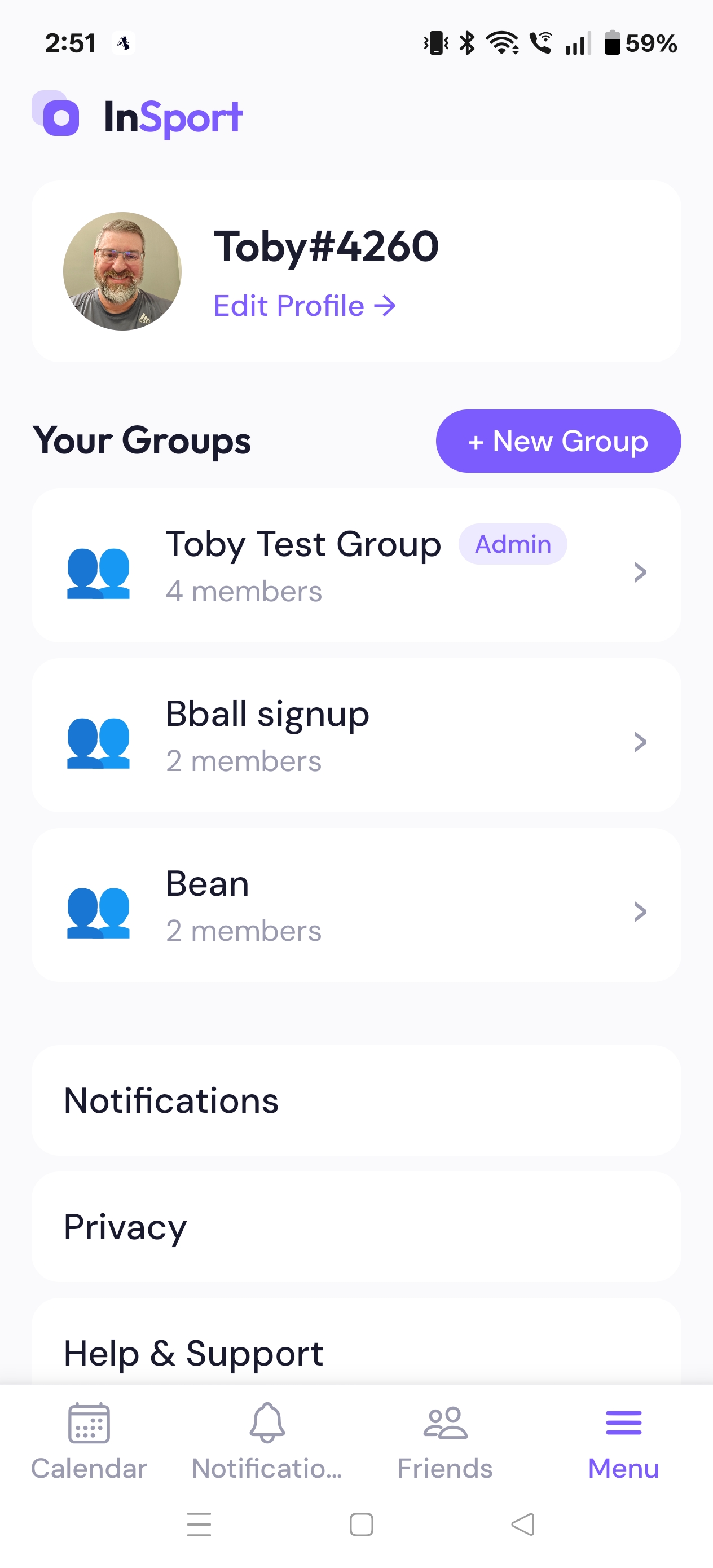
Profile Photo
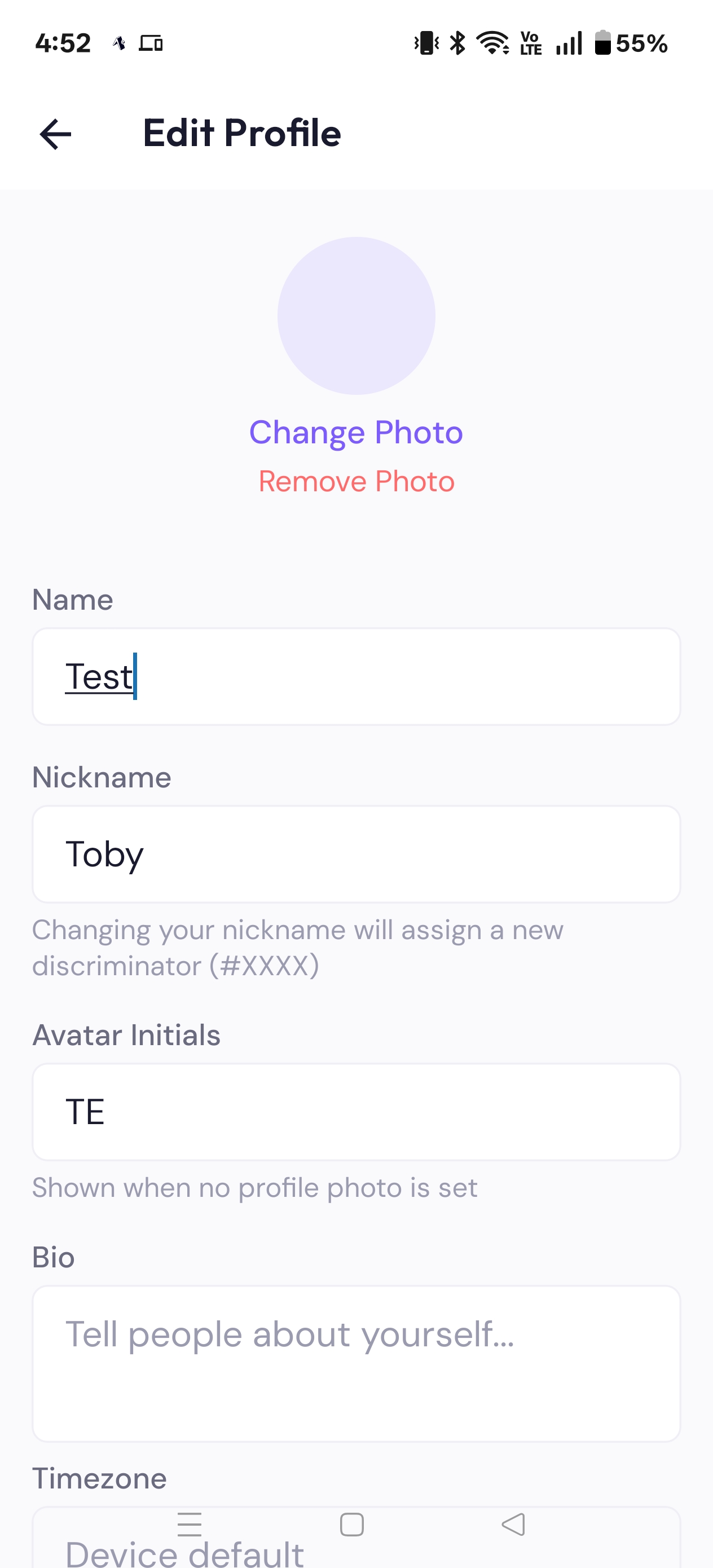
From Profile → Edit Profile, tap Change Photo to upload from your device. Large photos are resized automatically. Tap Remove Photo to fall back to your initials.
Name, Handle & Bio
Update your display name, handle, and a short bio so group members know who you are. Changing your handle assigns a fresh #XXXX tag.
Timezone
Set a timezone (or use your device default) so every event time is shown correctly for you, no matter where the organiser is.
Privacy
Control whether people can find you in search, and whether non-friends see your real name or just your handle.
New to InSport? You can replay the welcome walkthrough any time from Profile → Help & Support → Onboarding Review. Log out from the Profile tab.
Groups
Groups are the heart of InSport. Groups is your home tab — create or join a group, then everything (events, chat, members) lives inside it.
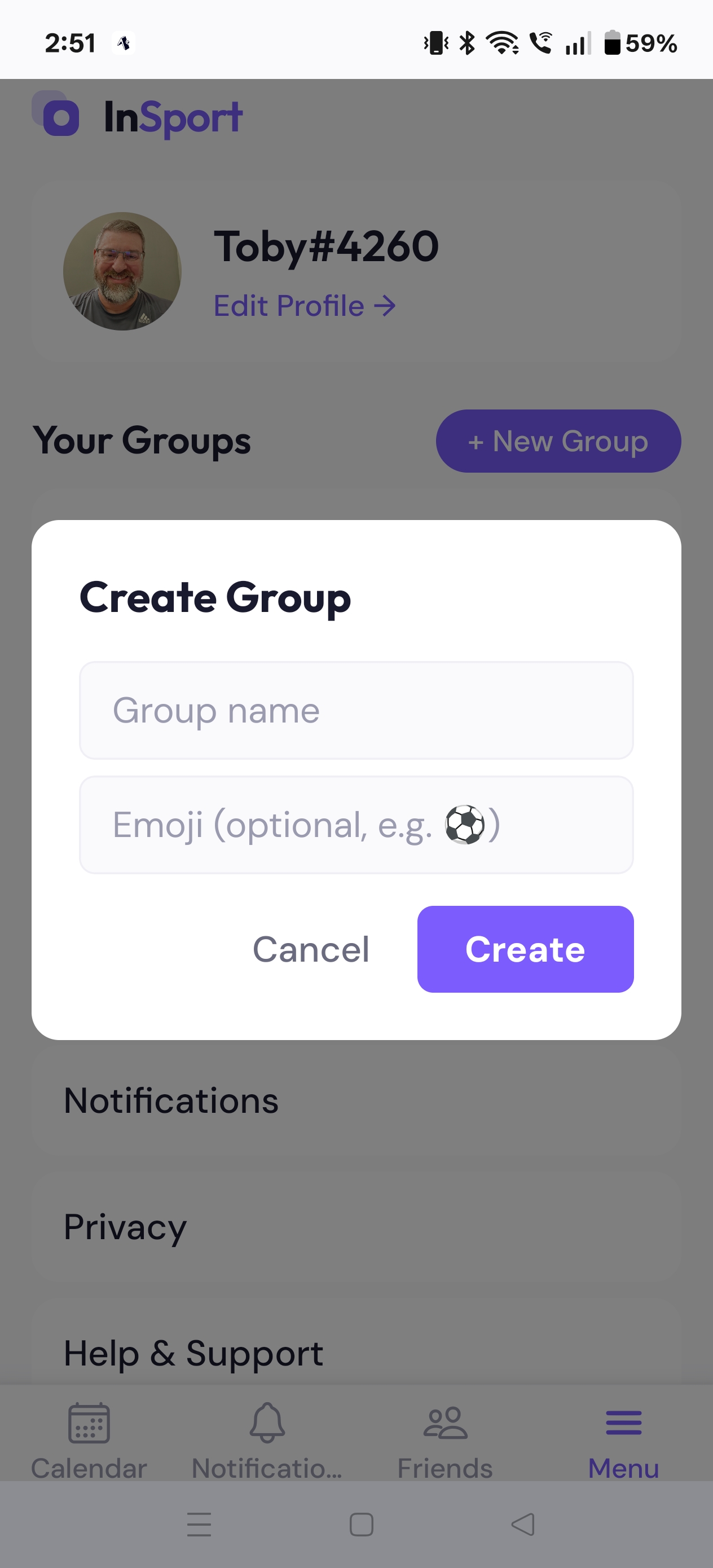
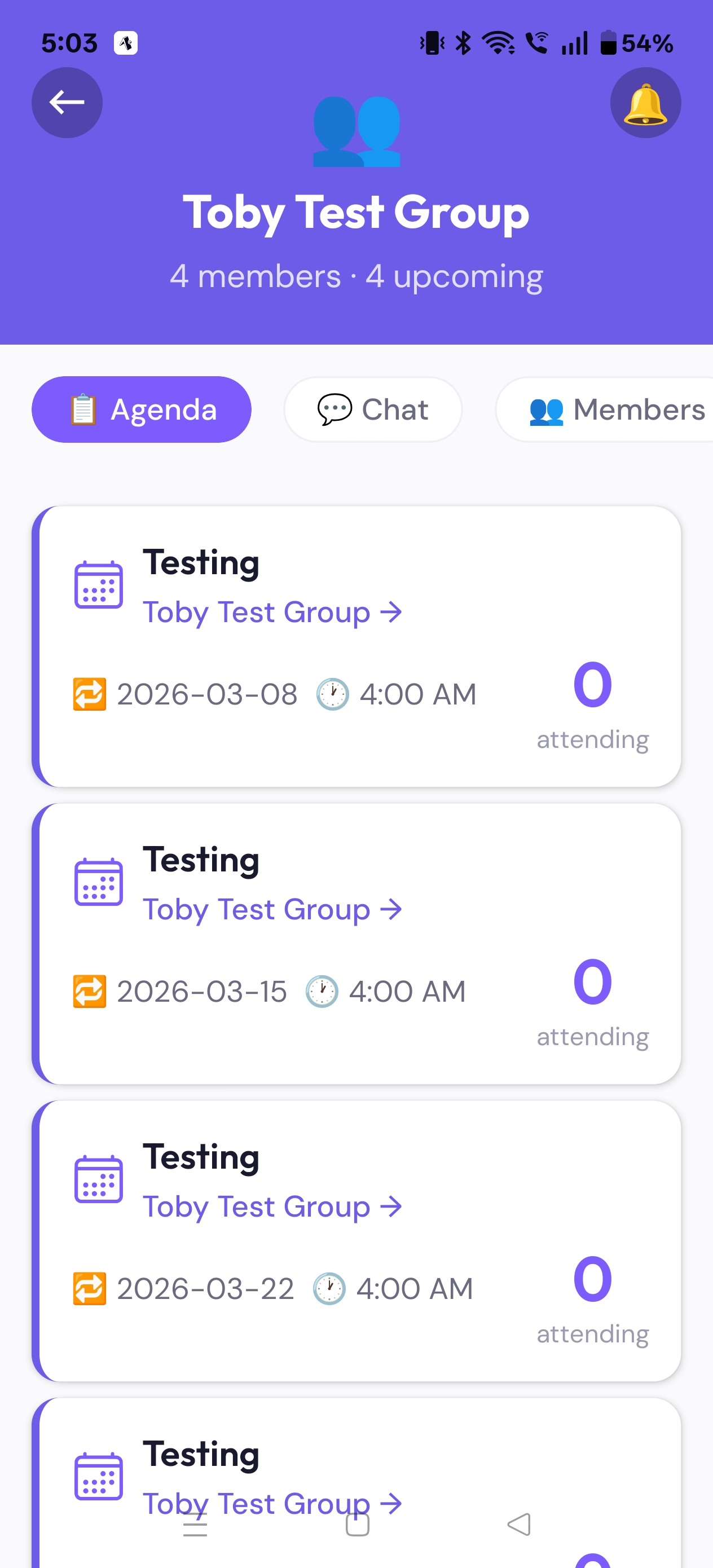
Create a group
On the Groups tab tap the add button, give it a name, emoji, and colour. You become the group's Owner.
Join by invite
When someone invites you, it appears in the Group Invites section on the Groups tab — tap Join or Decline.
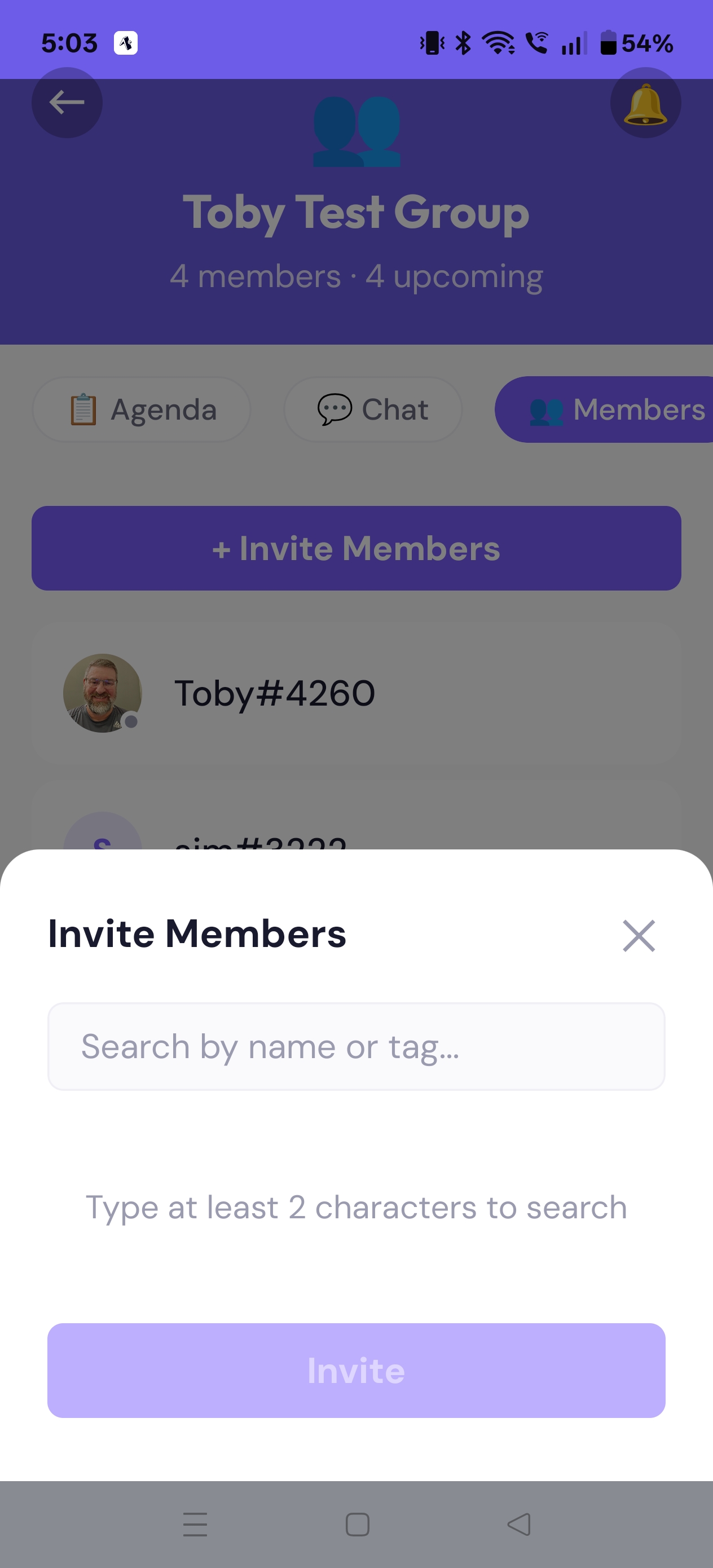
Suggest & invite members
Admins invite people directly. Regular members can suggest someone — an admin then approves or rejects the suggestion.
Roles & permissions
Every group has three tiers. Owner ⊃ Admin ⊃ Member.
| Action | Owner | Admin | Member |
|---|---|---|---|
| View agenda, chat, members · RSVP · send messages | ✓ | ✓ | ✓ |
| Suggest a member to invite | ✓ | ✓ | ✓ |
| Create / edit / cancel events | ✓ | ✓ | — |
| Invite members · approve suggestions · promote / kick | ✓ | ✓ | — |
| Manage dues · mark members paid | ✓ | ✓ | — |
| Demote an admin · transfer ownership · delete group | ✓ | — | — |
Dues: an admin can open a dues session (a named period with an end date). While a session is active, members who haven't been marked paid can't RSVP Attending to that group's events. Admins mark members paid as dues come in; you stay paid until the session's end date.
Friends
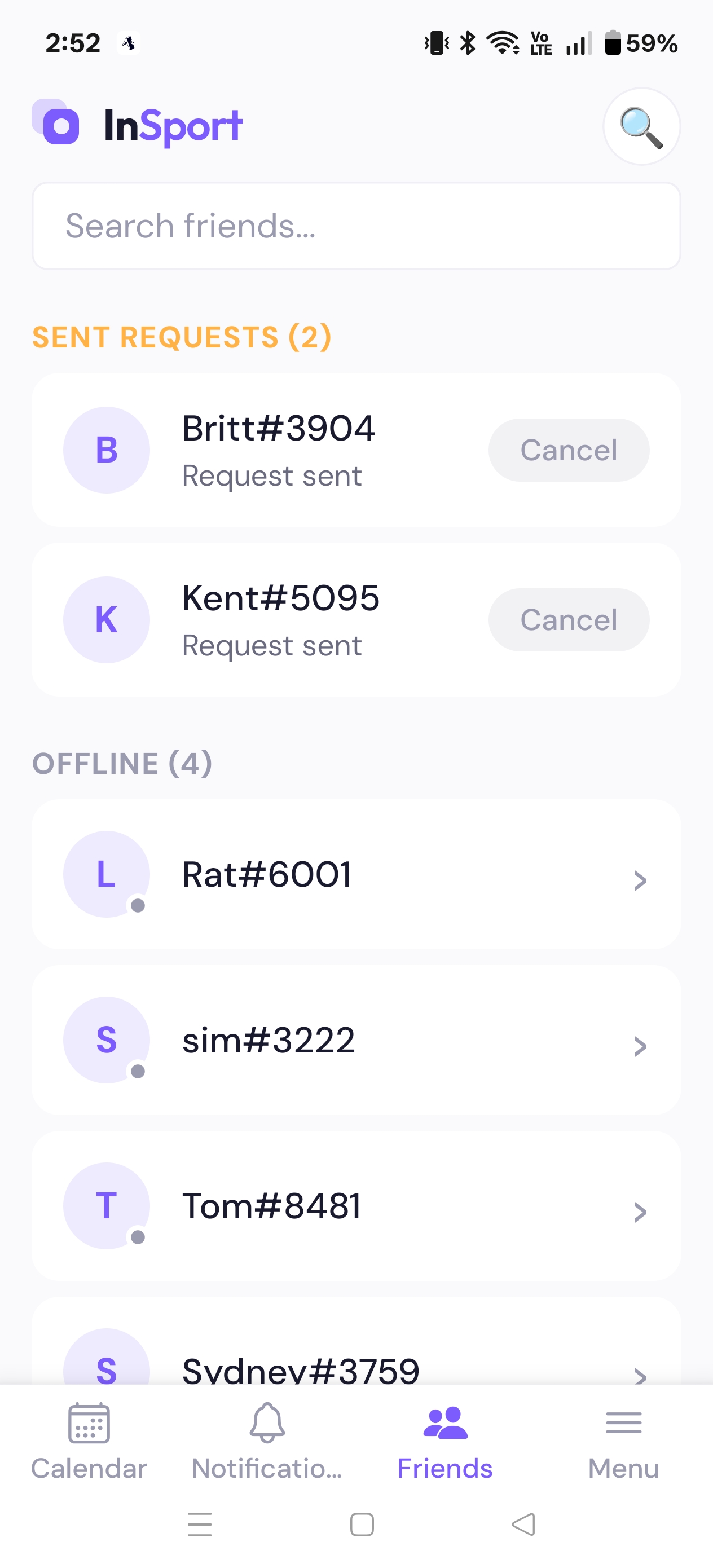
Add friends to message them directly and invite them into your groups.
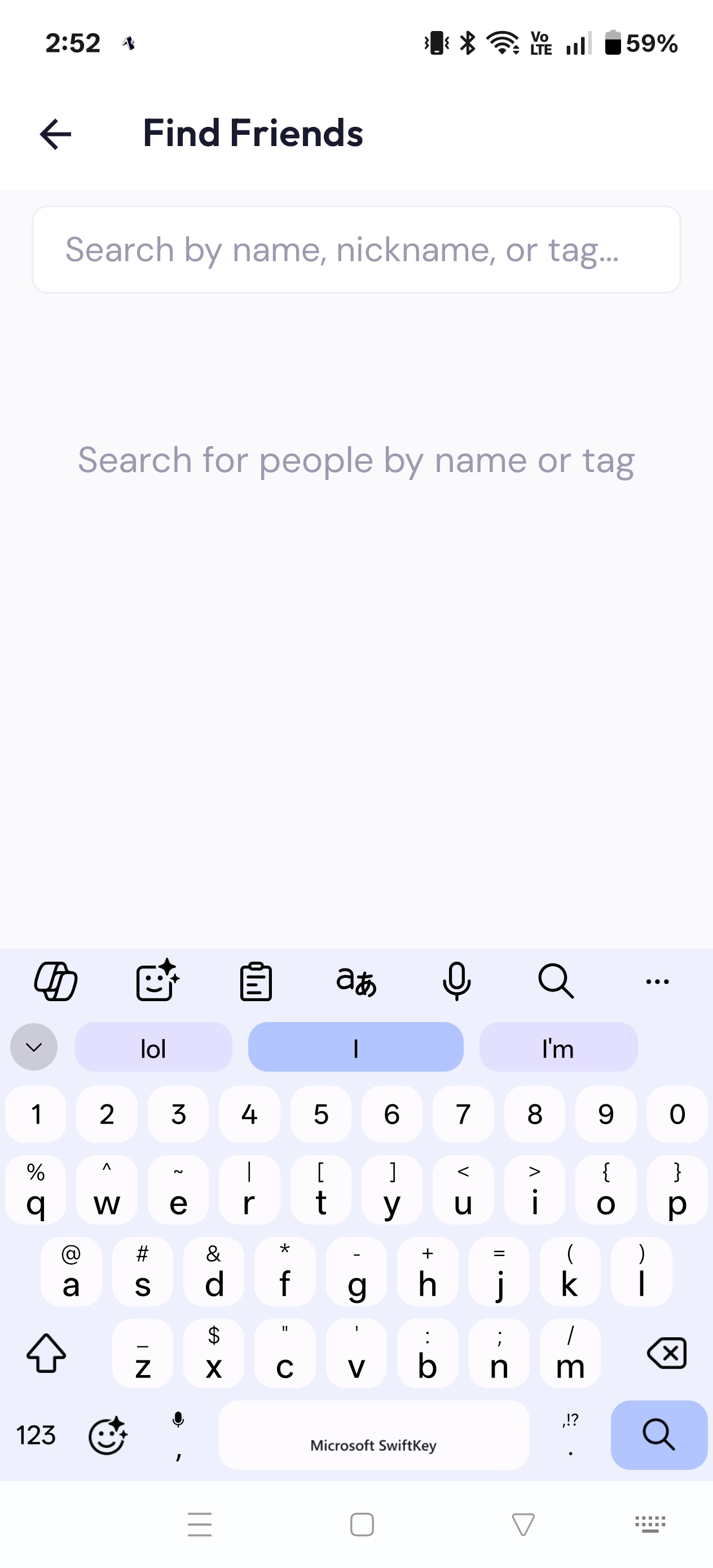
Find people
On the Friends tab, tap Find Friends and search by name, handle, or the full tag (e.g. Alex#4821) to find someone precisely.
Send & accept requests
Tap Add to send a request. Incoming requests appear at the top of the Friends tab with Accept / Decline. Mutual friends are shown on profiles.
Invite a friend to a group
Open a friend's profile and tap Invite to Group to add them to any group you manage.
Direct messages are friends-only. You can only DM someone once you're friends. Manage who can find you in Profile → Privacy.
Messaging
Three ways to talk: one-to-one with friends, with a whole group, or focused on a single event.
Direct Messages
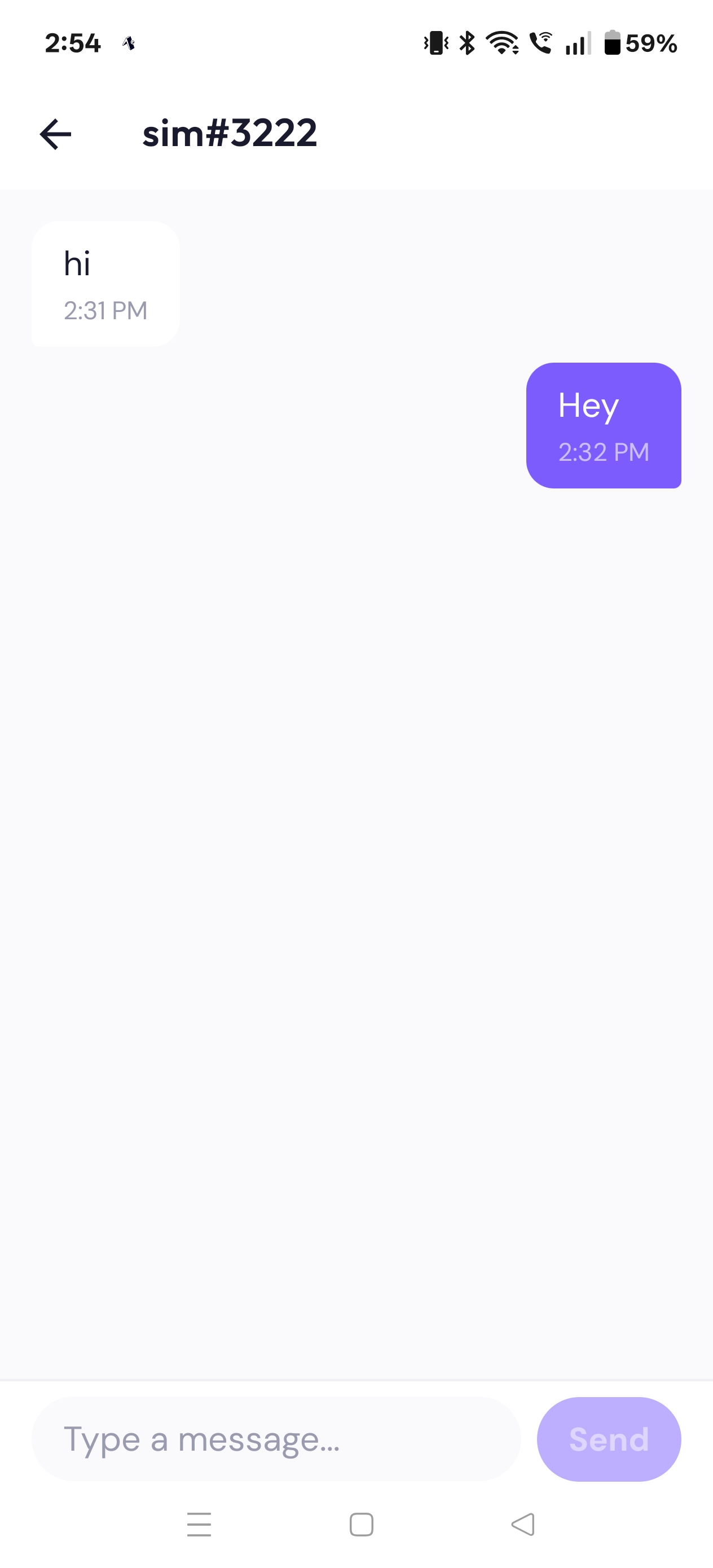
Private one-to-one chat with a friend. Open it from their profile or the Friends tab. Requires an accepted friendship.
Group Chat
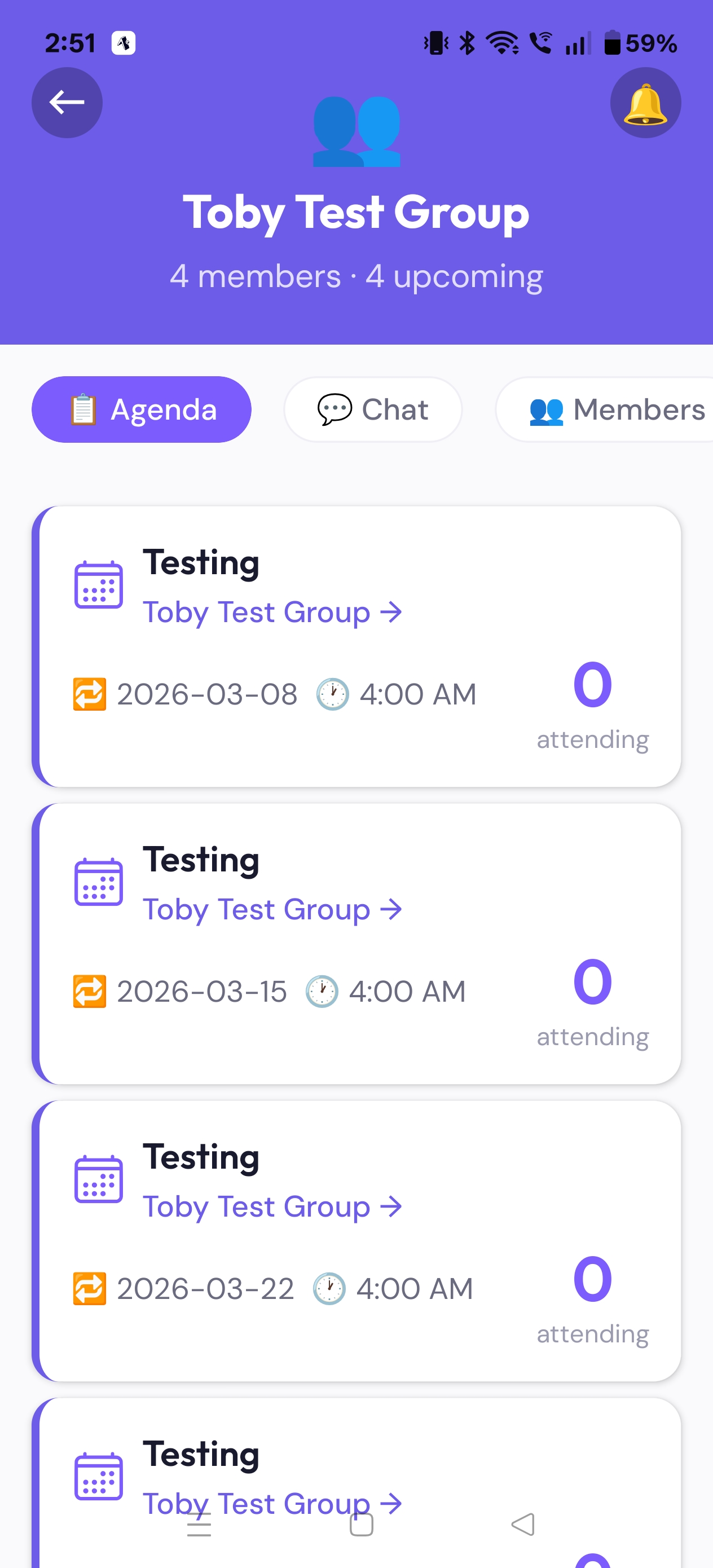
A shared conversation for everyone in a group. Open a group and switch to its chat to talk to all members at once.
Event Chat
Each event has its own chat for coordinating that specific outing — open the event and tap Event Chat.
Polls in Chat
Any member can drop a poll into group or event chat to settle a decision quickly — see the Polls section.
Events & RSVPs
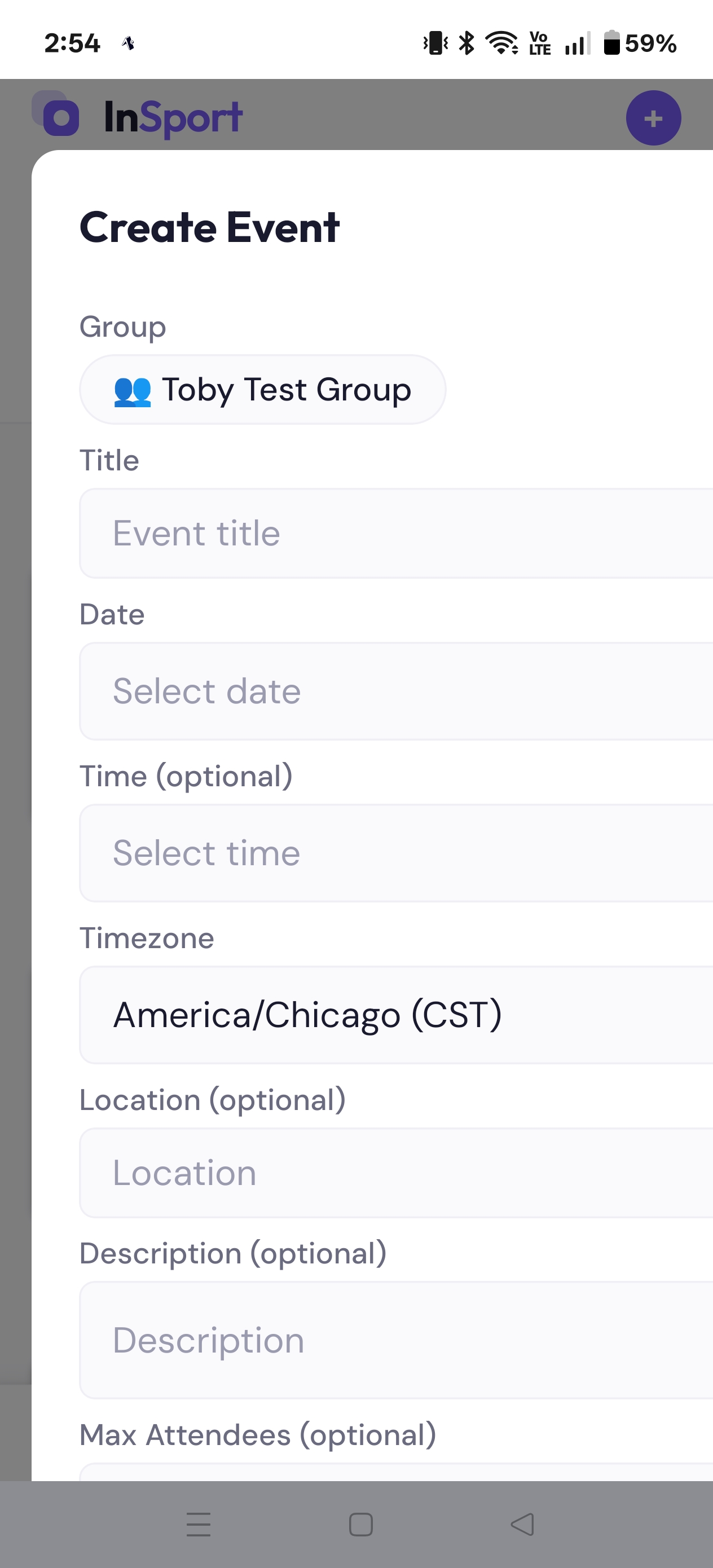
Admins create events inside a group; everyone RSVPs. Capacity, waitlists, +1 guests, and recurring events are all handled for you.
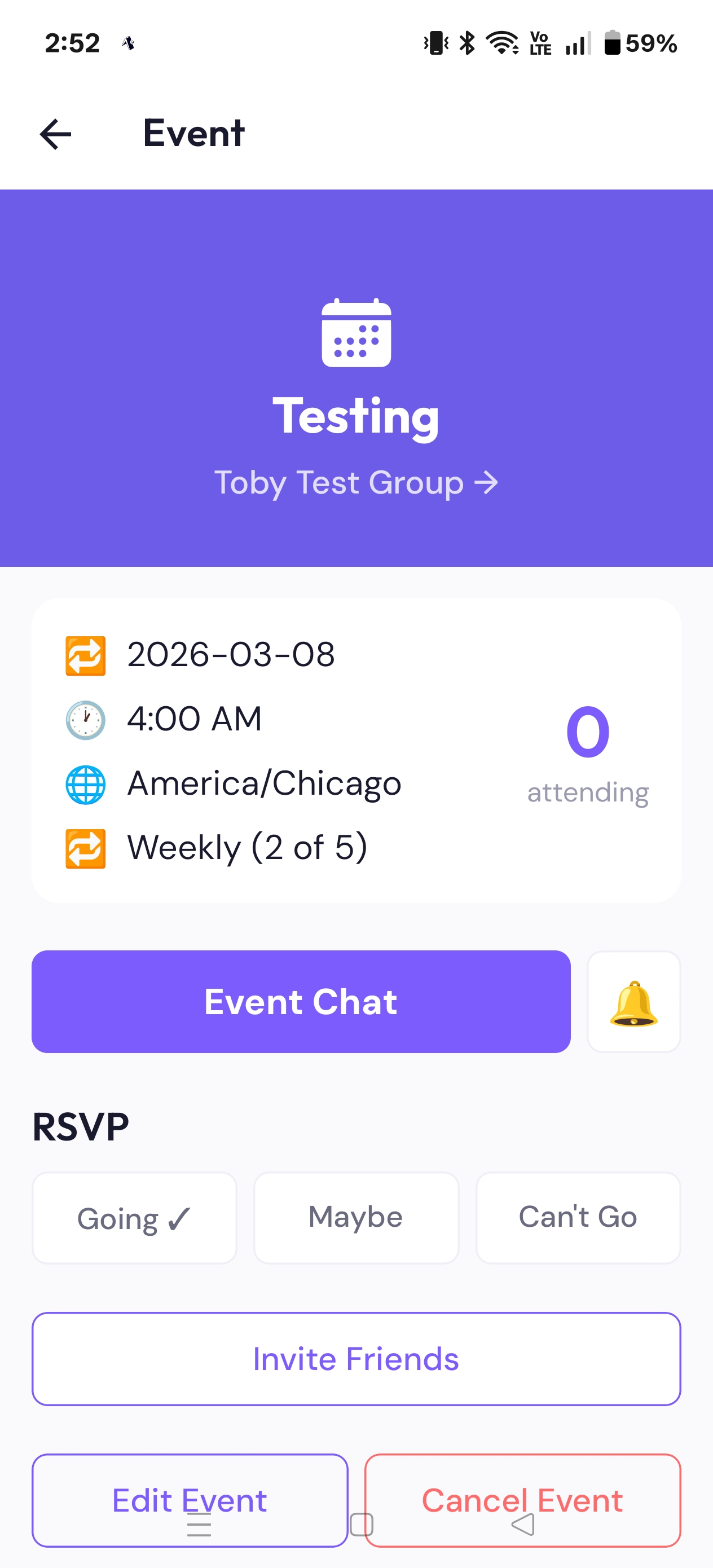
RSVP states
Tap an event and choose your response. It shows as a single pill you can change any time:
✓ Attending Maybe Decline Waitlisted
Capacity & Waitlist
If an event has a limit and it's full, new "Attending" RSVPs join the waitlist automatically and are promoted (with a notification) when a spot opens.
+1 Guests
When the organiser enables it, attendees can add named +1 guests. +1s automatically close once the event hits its minimum headcount.
Recurring Events
Events can repeat daily, weekly, or monthly. When editing or cancelling, you choose this one or this & future occurrences.
Location & Time
Events can include a tappable map link and a start/end time (overnight is fine). Times display in your timezone.
Need more people? If an event is short of its minimum, an admin can tap "Ask members to bring a +1" to notify the group — and you'll see a live "needs N more" status on the event.
Calendar
The Calendar tab is a single scrolling agenda of your upcoming events across every group, grouped by date.
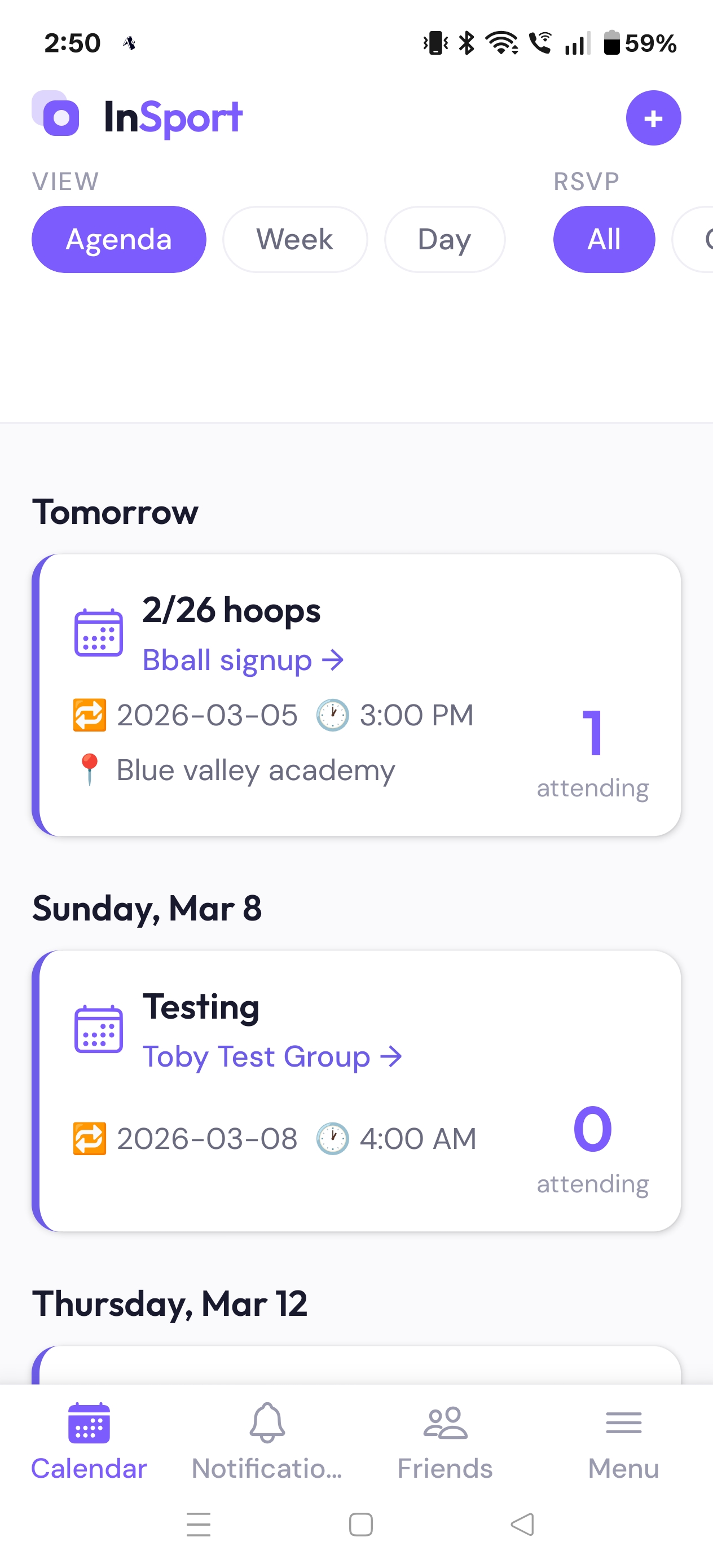
Use the filter pills at the top to narrow the list by your response:
All
Every upcoming event you can see.
Attending
Just the events you've said yes to.
Not RSVP'd
Events still waiting on your response.
Each card is tinted with its group's colour so you can tell at a glance which group an event belongs to. Declined events collapse to a slim dimmed row. There's also a per-group agenda inside each group.
Polls
Settle a question fast — where to eat, what time to start — right inside group or event chat.
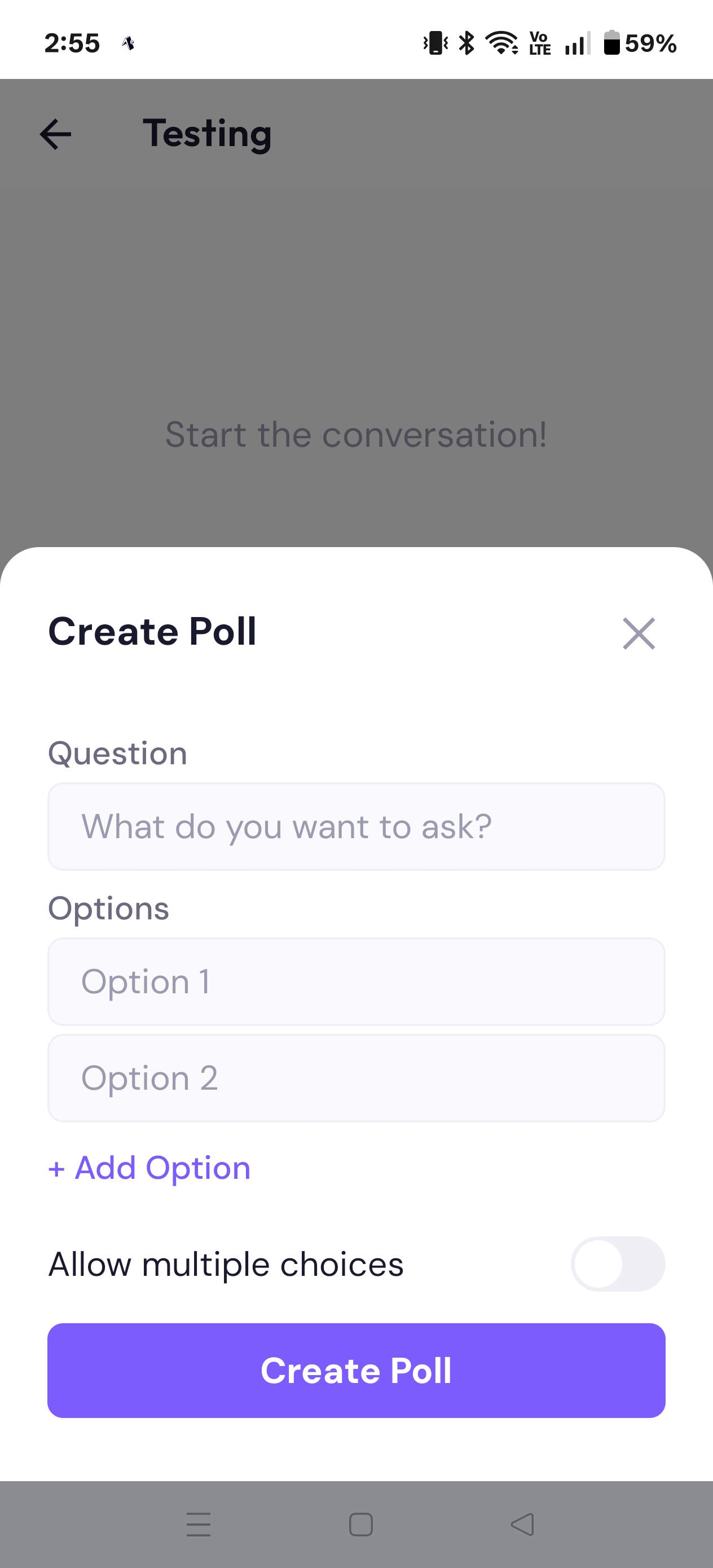
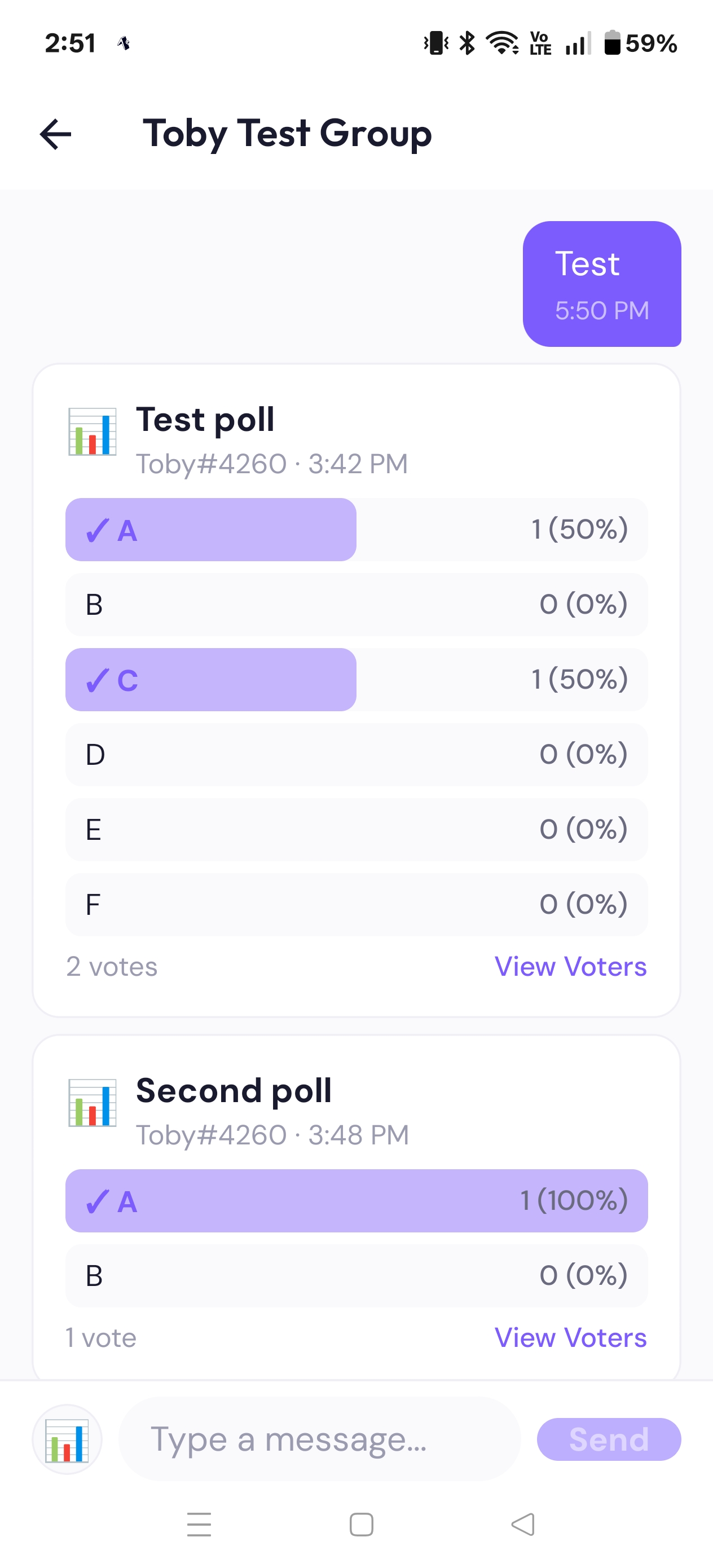
Create a poll
In a group or event chat, start a poll with a question and options. Choose single or multiple choice. Any member can create one.
Vote
Tap an option to vote. Results update live. Votes are final, so choose carefully.
See who voted
The poll creator and group admins can see the breakdown of who voted for what.
Notifications
Stay in the loop on invites, new events, RSVPs, and messages — in-app, as push notifications, or by email as a backup.
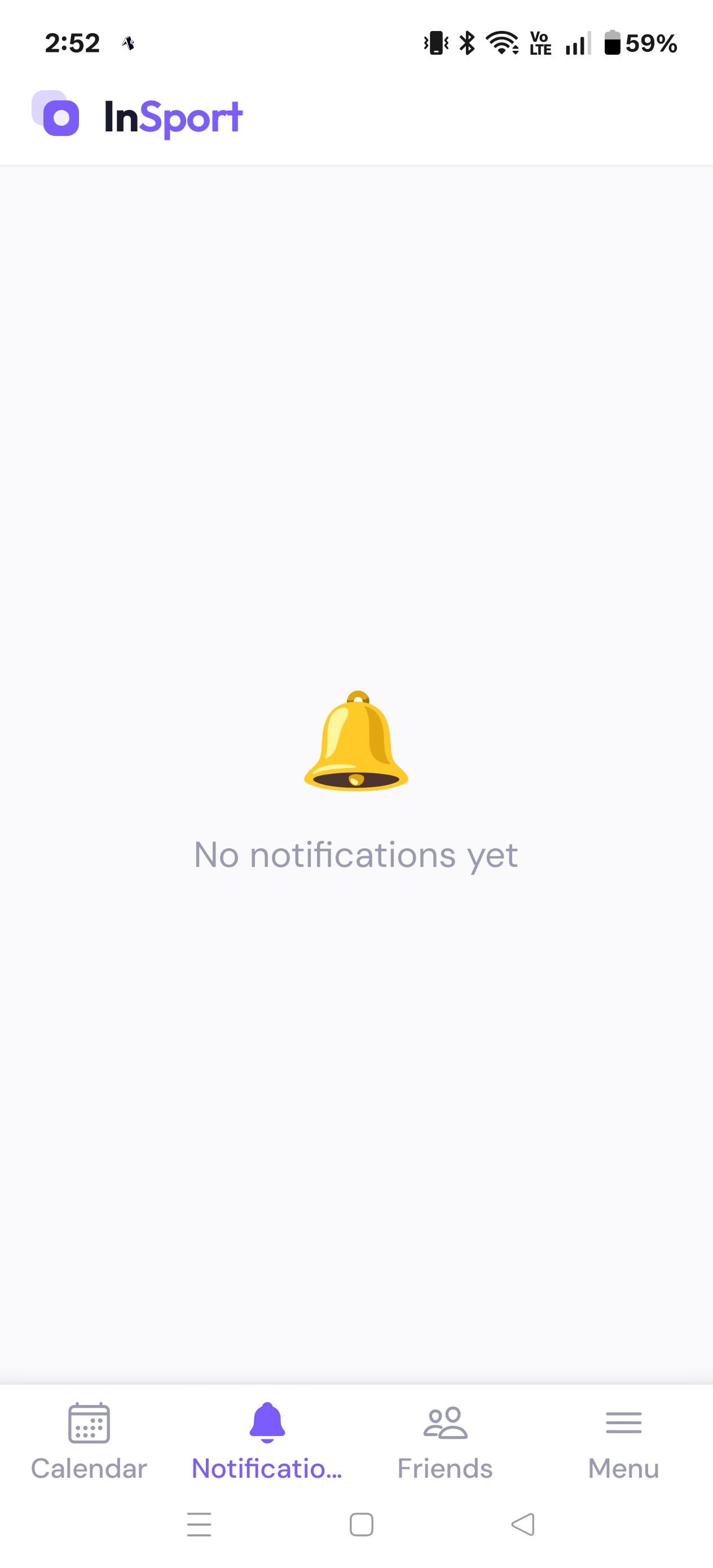
In-app feed
Tap the bell on the Groups tab (it shows an unread badge) to see your notification feed. Tap any item to jump straight to it.
Turn on push notifications
Open the feed, tap the gear, and under Push notifications tap Enable, then allow your browser's prompt. You'll then get alerts even when InSport is closed.
Fine-tune what you get
In the same screen, toggle categories (chat, events, friends, groups) and mute individual groups or events you don't want pinged about.
iPhone: the Enable button only works after you've added InSport to your home screen and opened it from there. Until then (and as a backup for everyone), important updates like group invites and new events are also sent by email.